How to Build a ChatGPT Health App in 20 Minutes
Introduction
ChatGPT Health is OpenAI's first verticalized offering, launched in response to massive demand. The stats are staggering: 230 million people globally ask health questions weekly, 40 million ask daily, and more than 5% of all ChatGPT messages are health-related. Seven in ten health conversations happen outside clinic hours, highlighting a clear gap in traditional healthcare systems.
This guide walks you through the exact process of building a ChatGPT Health App using Fractal, a no-code builder that's essentially "Lovable for ChatGPT apps." You'll go from idea to deployed app in under 20 minutes.
Full Demo:
Platforms you need:
Fractal 20% Discount Code Here.
Why ChatGPT Health Apps Matter
ChatGPT Health allows users to add medical records, sync health data from apps like Apple Health (with Whoop and Garmin coming soon), and access specialized health apps. Launch partners include MyFitnessPal, Weight Watchers, AllTrails, Instacart, and Peloton.
The opportunity for developers is enormous. Potential app ideas include:
- Lab results translator for specific test types
- Symptom tracker with visual patterns over time
- Sleep helper for understanding and improving sleep quality
- Recovery coach for injury rehabilitation (what we'll build today)
Section 1: Creating the Perfect Prompt
The foundation of any great ChatGPT app is a well-crafted prompt. Rather than writing this from scratch, use a specialized GPT called the "ChatGPT App Prompt Trainer" to generate an optimized prompt for Fractal.
Step 1: Define Your Core App
Write a clear description of what you want to build. For the Recovery Coach example, this includes allowing users to input injury/surgery details or upload doctor documentation, guiding them through recovery with exercises, enabling check-off functionality, and providing reminders.
Step 2: Understand ChatGPT App Design Principles
ChatGPT apps are fundamentally different from web or mobile apps. They are intent and prompt-based, meaning they surface one feature at a time based on user prompts. Think of each feature as "popping up" when triggered by specific user intent. The prompt trainer is built with the ChatGPT Apps SDK in mind, ensuring your prompt follows best practices.
Step 3: Add Brand Guidelines
Take a screenshot of an app or website whose design you admire, then ask ChatGPT to extract brand guidelines from it. Include elements like color palette, typography, spacing, and UI component styles. Enter both your app description and brand guidelines into the prompt trainer.
Step 4: Answer Clarifying Questions
The prompt trainer will ask clarifying questions about your app. Review each question and confirm the answers are correct. These typically cover functionality, user flow, and design preferences. Once confirmed, the trainer generates your complete, optimized prompt including conversation starters and UX specifications.
Section 2: Building in Fractal
Fractal is a no-code builder that transforms your prompt into a fully functional ChatGPT app. No coding required—you just prompt and the agent builds.
Step 1: Start a New Build
Log into Fractal and click "New App." Paste your generated prompt from the prompt trainer. Add your brand guidelines at the bottom of the prompt for consistent styling. Name your project (e.g., "Recovery Health App") and click "Start Build."
Step 2: Let the Agent Work
Fractal's agent will first create a plan, then execute the build. This typically takes 5-15 minutes depending on complexity. The agent creates the environment, finalizes the plan, and then builds all the tools (features/screens) for your app. You can watch the detailed action log as it works.
Step 3: Review the Output
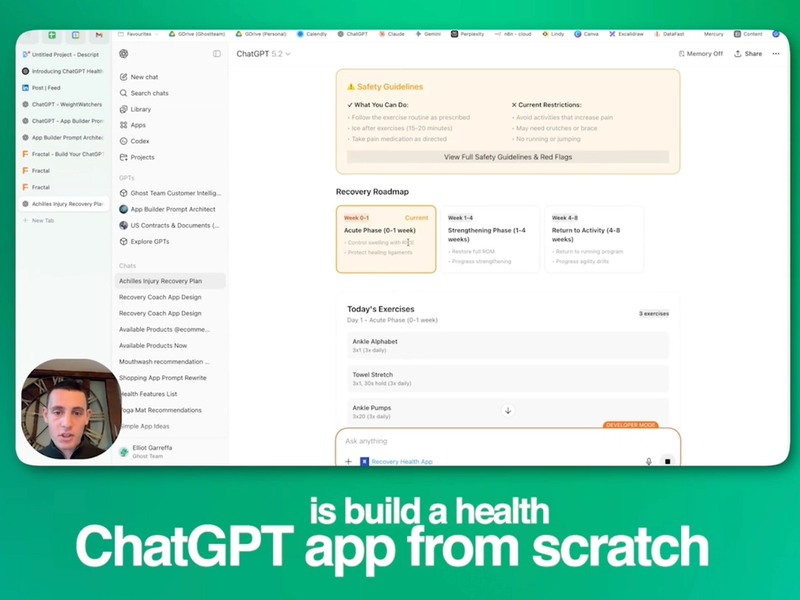
Once complete, review what Fractal built. For the Recovery Coach, the agent created multiple tools including:
- Create Recovery Plan: Safety guidelines and personalized recovery roadmap
- Daily Routine: Exercise schedule with check-in functionality
- Exercise Details: Individual exercise breakdowns
- Update Plan: Ability to modify the recovery program
Preview both mobile and desktop views to ensure the widgets render correctly. If adjustments are needed, simply prompt the agent with your changes.
Section 3: Testing in ChatGPT
Before publishing, thoroughly test your app in ChatGPT's developer environment.
Step 1: Deploy to MCP Server
Click "Deploy" in Fractal. This creates an MCP (Model Context Protocol) server, making your app accessible publicly. You'll receive a unique project ID.
Step 2: Enable Developer Mode in ChatGPT
In ChatGPT (requires Pro or Enterprise subscription):
- Go to Settings → Personalization → Advanced
- Enable Developer Mode
- Click "Create an App"
- Paste your Fractal deploy link
- Name your app (e.g., "Recovery Health App")
- Select "No Auth" (unless login is required)
Step 3: Run Test Prompts
Test various prompts to ensure your app responds correctly. For the Recovery Coach, try prompts like:
- "I have just injured my Achilles running and want a recovery plan"
- "Show me the first exercises"
- "Update my recovery plan"
The app should intelligently select which tool to display based on user intent. Run multiple edge cases to ensure robust functionality.
Section 4: Submitting to the OpenAI App Store
Once testing is complete, you can submit your app for public release.
Step 1: Initiate the Publish Process
Click "Publish" in Fractal. Unlike traditional app stores (like Apple's), Fractal auto-generates most submission requirements based on your app, saving significant time.
Step 2: Complete Tool Metadata
Fractal automatically generates metadata for each tool, explaining how and when it should be used. Review these descriptions to ensure accuracy. This metadata is critical for ChatGPT to understand when to call your app.
Step 3: Verify Your Domain
Complete domain verification to prove ownership of the domain you're publishing to. This is a security requirement for all ChatGPT apps.
Step 4: Add Test Cases
Test cases help ChatGPT learn when to trigger your app. Fractal generates these automatically, but review them carefully:
- Positive test cases: Prompts that SHOULD trigger your app (e.g., "create a recovery plan," "view exercises," "log my symptoms")
- Negative test cases: Prompts that should NOT trigger your app (to prevent false activations)
Step 5: Add Screenshots & Configure Settings
Upload screenshots of your app in action. Configure global settings, especially country availability—for health apps, be very specific about which regions you want to serve. This is particularly important for regulatory compliance.
Step 6: Submit for Review
Once all fields are complete, submit your app. OpenAI will review it before making it publicly available in the ChatGPT app store.
Key Takeaways
Why visual UI matters for health apps: Without a visual interface, users can't easily track streaks, see exercise routines visually, watch demonstration videos, or monitor progress over time. A ChatGPT app solves this by providing rich visual widgets triggered by natural language.
The ChatGPT app paradigm: Think of your app as a collection of features that surface one at a time based on user intent. Design for prompt-based interaction, not traditional navigation.
Discoverability is critical: Your metadata and test cases directly impact when ChatGPT suggests your app. Invest time in getting these right.
Iterate quickly: Fractal enables rapid prototyping. Test, gather feedback, and refine your prompts to improve the experience.
Resources
- Community: Join appsonchatt.com for a Discord community of ChatGPT app builders
- Discoverability: Visit appsdiscoverability.com to learn how to get your ChatGPT app discovered
- Fractal: Use the discount code here for 20% off
Prompts Used
Prompt: Fractal Prompt
Want to build a Recovery Coach App - people should be able to give it their overview of an injury or surgery that they had, or give official documentation from the doctors, and then they should get a guide on how to get through the injury or surgery recovery.
So it mainly surfaces are:
1. Exercises visually given
2. A way to check off that you have done them
3. It also should be able to give you reminders
And then just make sure that I'm building this in the best way where it suits ChatGPT. So think about how you would structure it or which features you would bring out so that it best suits ChatGPT
Brand Essence: Friendly, motivating productivity — clean, energetic, approachable
Color Palette:
- Background: #FFFFFF (clean white)
- Surface/Cards: #F7F7F7 or #F5F5F5 (soft off-white/light gray)
- Primary Accent: #FF9500 or #FFA726 (vibrant orange)
- Success/Check: #FF9500 (same orange for completed states)
- Text Primary: #1A1A1A or #2D2D2D (near-black)
- Text Secondary: #6B7280 (medium gray)
- Inactive/Muted: #E5E5E5 (light gray for incomplete bars)
Typography:
- Font Family: SF Pro / Inter / System sans-serif
- Headings: 18-20px, semibold (e.g., "Zade's Daily Pulse")
- Subheadings: 14-16px, medium weight (e.g., "Today", "100%")
- Body/Labels: 14px, regular Small Text: 12px (day labels, streaks)
- Style: Rounded, friendly, highly legible
Visual Style:
- Color Scheme: Light mode, high contrast
- Border Radius: 16-20px (cards), 12px (buttons/checkboxes), fully rounded for icons
- Shadows: Subtle, soft shadows on cards (0 2px 8px rgba(0,0,0,0.06))
- Spacing: Generous padding (16-20px), 12px gaps between list items
- Charts/Bars: Rounded bar charts, orange for complete, gray for incomplete
- Icons: Rounded checkmarks, emoji accents (⚡, 🔥 streaks)
UI Components:
- Success Banner: Green checkmark icon + text on white/light green tint
- Habit Cards: White/off-white rounded cards with left-aligned checkbox, habit name, streak indicator
- Progress Bars: Vertical rounded rectangles, variable height based on completion
- Streaks: Fire emoji 🔥 + number in small muted text
- Tone: Encouraging, celebratory, gamified — "You're crushing it!"